THE DUO JOURNAL ·
Voice-activated vs timed teleprompter: which scrolling mode should you use?
Choose timed scrolling when you want a steady rehearsal pace without speech recognition. Choose voice following when your pauses vary and your supported device can reliably match your spoken words to the script. Rehearse the same passage in each mode before committing to a recording.
Two ways to move the words.
A timed teleprompter advances text at a selected speed. It does not listen for a sentence to finish. A voice-activated teleprompter uses recognized speech to estimate your position in the script. That can accommodate changes in delivery, but depends on recognition and how closely you follow the written text.
In Teleprompter Duo, the controls are labeled Timed and Follow my voice. Timed rehearsal is included in Free. Supported on-device voice following requires Pro. Neither mode is a camera-quality setting: you can read near the rear main camera in either mode, with recording formats up to 4K (3840 × 2160) where supported.
Use these decision points rather than assuming that voice activation is always the better option:
- Predictable wording and a steady practice pace: start with Timed, then calibrate the speed to your comfortable delivery.
- Variable pauses while explaining a prepared script: try Follow my voice and check that it keeps your place during those pauses.
- Speech recognition unavailable or permission declined: use Timed. Voice following cannot be assumed to work for every language and device.
- Long demonstrations with improvised explanations: divide the script into short sections and rehearse navigation. Neither mode guarantees recovery after a large jump away from the written text.
For the complete recording workflow, use the iPhone Duo teleprompter setup guide. For feature selection across apps, start with our Duo teleprompter buying guide.
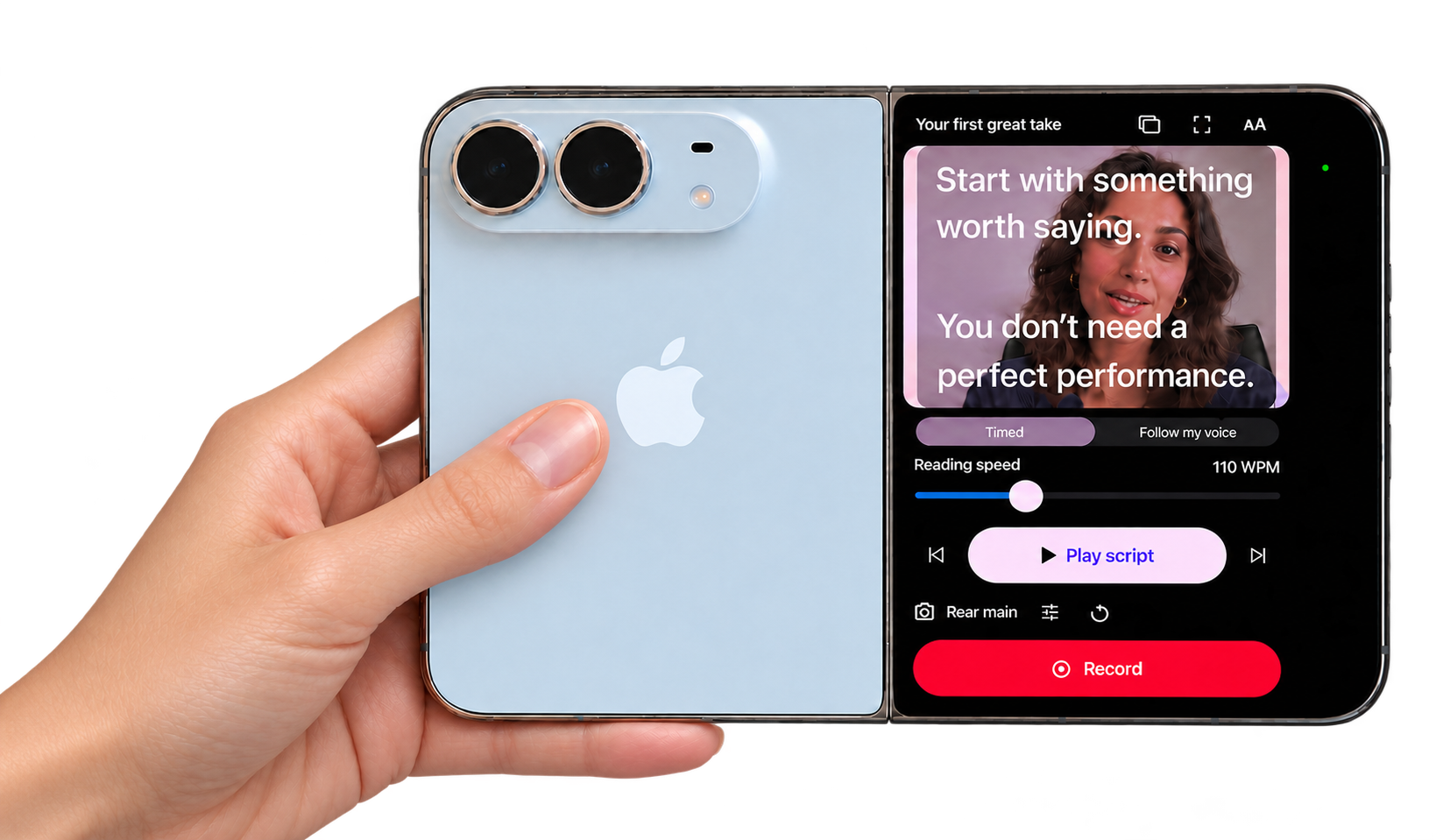
What timed scrolling does well.
Timed mode is useful when you want to practice a repeatable delivery or remove speech-recognition availability from the scrolling decision. Microphone access is still needed to record your voice in a video; choosing timed text does not remove that recording requirement.
Start by speaking the paragraph naturally with the text paused. Then select a speed that lets you finish each thought without chasing the next line. Our reading-speed calibration guide explains how to measure spoken WPM and adjust the display.
In the current app implementation, timed playback moves steadily along the measured text layout, calibrated to the selected average words per minute. It does not interpret punctuation or stage directions as automatic pauses. Changing font size, column width or paragraph spacing can change how the movement feels, so rehearse again after changing the layout.
A speed setting is not a guarantee of a precise finished runtime. Your pauses, countdown, recording start and stop, and later edits still matter. If a video must fit a fixed slot, time the spoken rehearsal and inspect the exported file rather than relying only on the WPM control.
What voice following needs.
Voice following is helpful when you want to leave more space between ideas without keeping up with a fixed scroll. It works from the words it recognizes, so a quiet speaking position, clear delivery and a script that resembles what you will say are useful starting conditions.
Teleprompter Duo checks speech authorization, recognition availability and on-device support before starting. It requires recognition on the device and does not fall back to sending audio to a server when that support is unavailable. Apple documents on-device recognition support separately from current service availability; a language choice alone is not a successful device check.
The app matches recent recognized words against nearby script text. Repeated phrases, large skips, a different spoken sentence or competing speech can make your place harder to identify. Do not interpret “voice activated” as a promise that the app understands every improvisation or will jump to any distant paragraph.
If the reader loses your place, pause, use the paragraph controls to return to the intended section and restart from a clear phrase. If speech following stops or reports unavailable support, select Timed and recalibrate instead of rushing the take. Check your installed version and device before relying on voice following for important work.
Compare both modes without using a recording.
Use rehearsal first. This matters on Free, which includes one completed recording; supported voice following is a Pro feature. The following is a suggested exercise, not a claim that we measured either mode on every device.
- Prepare a short paragraph with three distinct thoughts. Remove instructions you do not intend to say aloud.
- Set the phone, reading distance, font and column width as you will use them for the take. Keep these settings unchanged during the comparison.
- Rehearse in Timed. Pause briefly between thoughts. Note whether you feel hurried, wait for text or need to pause playback yourself.
- With Pro and supported speech recognition, rehearse the same passage using Follow my voice. Check an ordinary pause and a repeated sentence. Observe whether the intended words remain easy to find.
- Try the interruption your real video needs: for example, showing an object before returning to the next sentence. Check how comfortably you resume and whether you need the paragraph controls.
- Choose the mode that needs fewer corrections for this script. Then make a short recording only when ready, review audio and eye movement, and confirm the saved frame.
Here is a practice passage you can replace with your own wording:
“Today I will show you one small change to this setup. First, look at where the words sit beside the camera. Now I will pause and show you the screen. When I return to the explanation, I want the next sentence to be easy to find.”
Pause at the end of the second sentence, then resume. Those pauses are instructions for your rehearsal, not commands to type into the reader. For a cleaner source script, use our teleprompter formatting example.
Fix the symptom before changing modes.
- Text moves while you stop speaking in Timed: expected behavior. Pause playback, lower the speed or test supported voice following if variable pauses are central to the delivery.
- Voice following does not start: check Pro access, microphone and Speech Recognition permissions, selected speech language and on-device support. Do not assume that a translated website means the app supports that language.
- Voice following loses its place: return to the intended paragraph, read a distinctive phrase and simplify repeated or improvised wording. If the room or script still makes recognition unreliable, rehearse in Timed.
- Your eyes scan too widely in either mode: narrow the text column and check reading distance. The natural eye-contact guide covers placement and gaze separately from scrolling.
- Scrolling feels comfortable but the video looks wrong: review framing, light and recording format. Changing scrolling mode will not repair a poor composition or turn an unsupported camera format into 4K.
Which should you choose first?
Begin with Timed to establish a comfortable script and display. If you regularly pause at unpredictable points, compare supported voice following before your next full take. Keep the choice tied to the actual script, language and recording environment.
For current limits and upgrade decisions, read Teleprompter Duo Free vs Pro. See the product features and app destination when you are ready to choose your setup. This guide describes the current implementation; hardware support, installed app version and permissions can change what is available.